Manage Discord alerts
Check your in-app notices, manage your Discord connection and understand delivery status.
More connection options
Account includes connections for Google Chat, OpenClaw and JSON webhooks, plus read-only API/MCP access for active paid accounts. Hosted API and key-management checks have passed; live delivery to these additional destinations remains unverified. See connection setup, allowances and compatibility.
Read in-app notices
The Alerts control opens notices inside First Flip. An unread count refers to that inbox; it does not tell you how many messages reached Discord.
Check your Discord connection
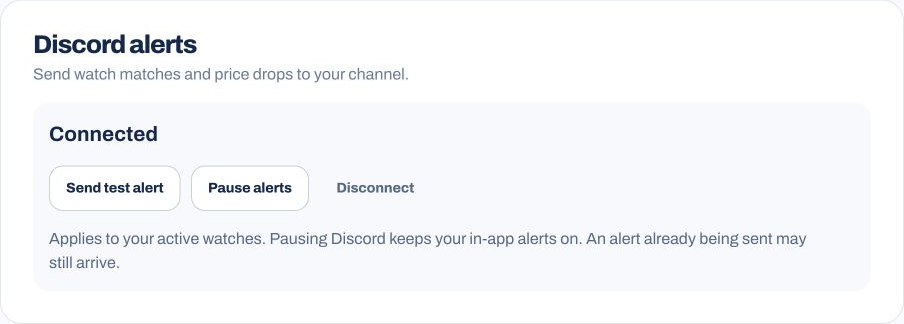
Open Account to find the Discord connection settings. Connected means the connection is saved. Use Send test alert to check it, then look for the message in your chosen Discord channel.
Pause alerts pauses Discord delivery while keeping in-app notices enabled. An alert already being sent may still arrive. Disconnect removes the saved connection.
Check whether a message arrived
If First Flip marks an alert Delivered, check that the expected message is visible in the correct Discord channel. If it is missing, verify the connection and watch status before sending another test.
A Discord test in the public app confirmed delivery and reserved one outbound alert on 8 September 2026. Repeat delivery and complete price-drop notifications still need verification; see product status.
Keep the connection private
A Discord webhook URL allows messages to be sent to its channel. Keep it out of screenshots, public posts and shared documents.